2-14: Debugging External Scripts (Unfinished)
0.1 This lesson is not complete
However, it is fit for student consumption.
1 Purpose
Debug external scripts with browser()
Access scripts from packages and debug
2 Material
The script for the lesson is here
A second script that contains a function to debug
The data used for the lesson is here
2.1 gitignore (for those using GitHub to hand in applications)
In this lesson you will be downloading a package named pracma and saving it to your project folder. This means that, without intervention, the pracma package will be added to your Git repository. This is not something you want to do because it is not really part of your project and it takes up a lot of space. To avoid adding pracma to your Git repository, open the .gitignore file in the root project folder and add the following line:
pracma/ Now Git will ignore (i.e., never allow you to Stage) the pracma folder and everything in it.
3 External Scripts in R
In R, we run external script files using source(). Ideally, external scripts should contain only function definitions. This is because any code that exists outside of a function is executed immediately when the file is sourced, which can lead to unintended side effects such as modifying objects in the Environment, changing global options, or producing unexpected output. By placing all executable code inside functions, we force the user to be explicit about when and how that code is run. In addition, functions are reusable and easier to test and debug, which improves readability, and long-term script maintenance.
4 Debugging Scripts
In the last lesson, we used breakpoints in RStudio to debug our main script. Breakpoints work by pausing execution of the script and giving you an interactive environment to step through the script and inspect objects while paused.
Breakpoints work very well when debugging your main script but they do not work reliably in external scripts called with source(). For external scripts, we instead use the R command browser() to pause execution and enter a debugging environment.
4.1 Debugging External Scripts with browser()
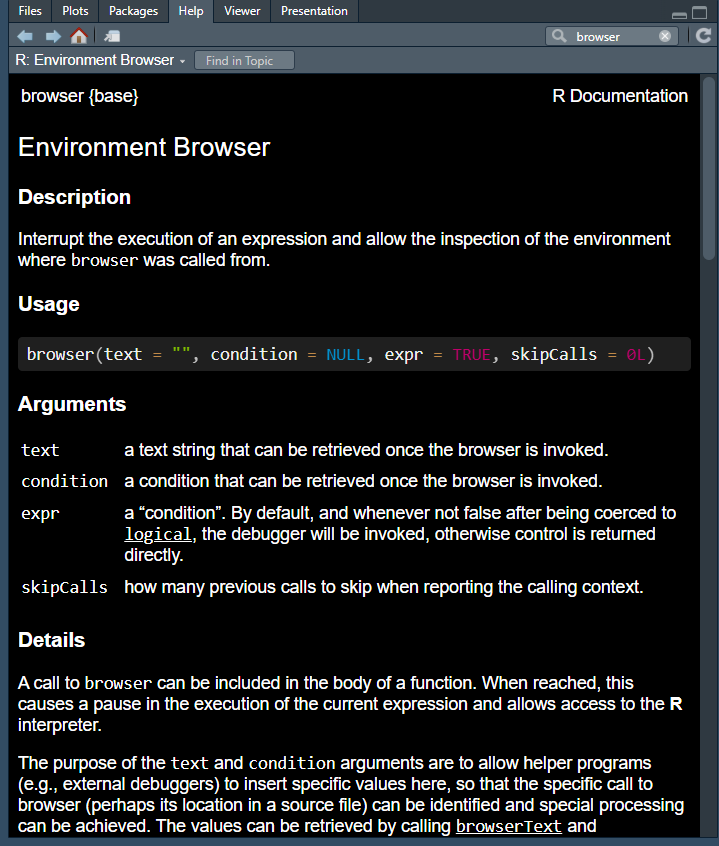
The browser() function can be placed directly inside an external script or function. When R reaches browser(), it pauses execution and opens an interactive debugging session, similar to a breakpoint. For reasons beyond this class, browser() works consistently inside sourced scripts and functions but does not work well in the main script (where breakpoints work best).
The main drawback of browser() is that it must be added and removed from the code manually, whereas breakpoints can be turned on and off using the RStudio interface.
5 Adding browser() to function
Let’s first Run the first seven line of the script 2-14_DebugExternalScripts.R.
rm(list=ls());
source("scripts/2-14_myFunctions.R");

# read in CSV file and save the content to weatherData
weatherData = read.csv(file="data/Lansing2016NOAA-3.csv");

temps = high_and_low(weatherData$maxTemp,
                     weatherData$minTemp,
                     weatherData$dateYear);
high_and_low() is a function inside the script 2-14_myFunctions.R. On line 7, it is called with three arguments: the max temps, min temps, and dates columns from weatherData. After the function is called, temps appears in the Environment as a List of 4 (the return value from high_and_low).
5.1 Pause execution of function
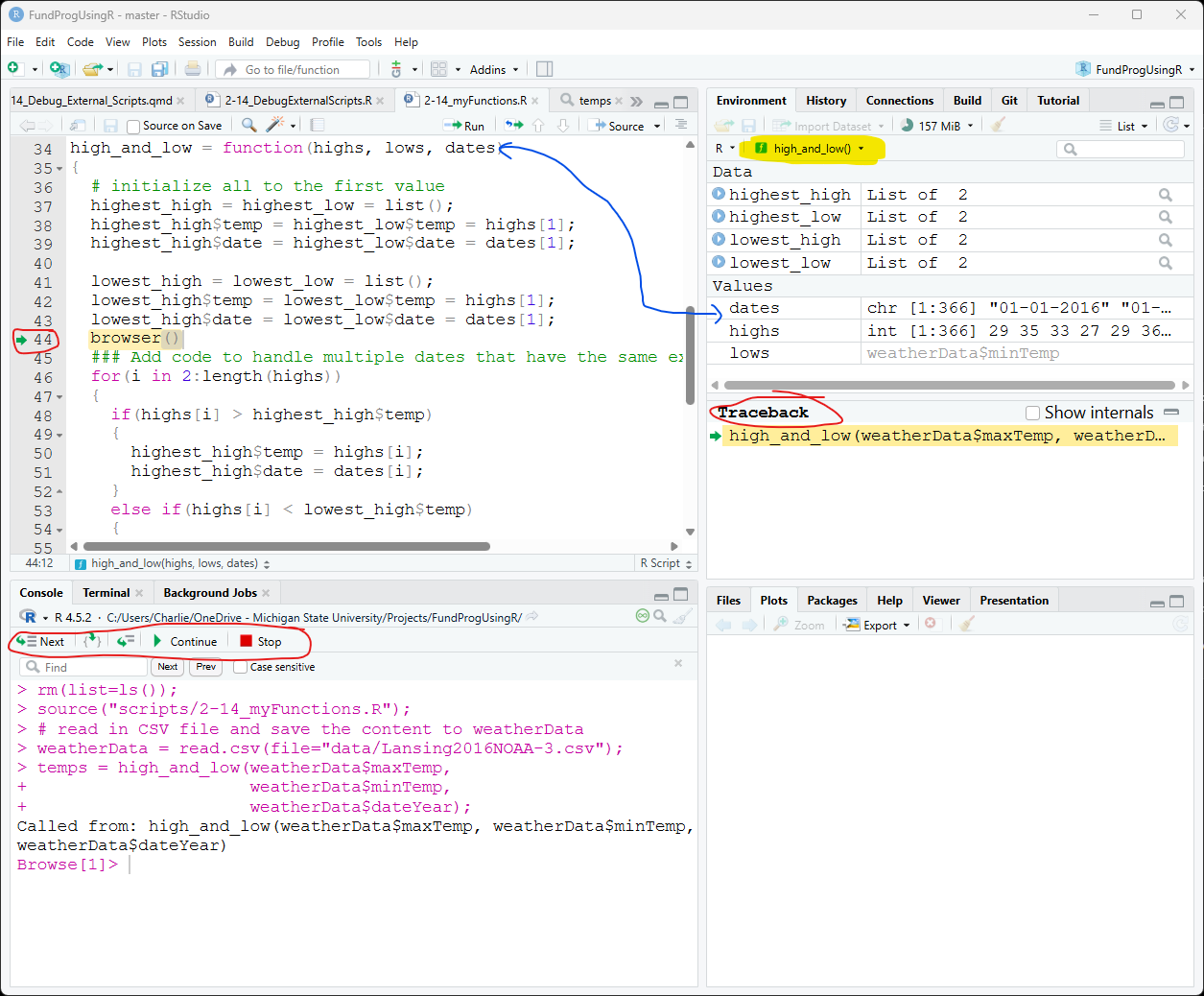
We can directly pause the function high_and_low by adding browser() to the script. In Figure 2, I added browser() right before the for() loop in the high_and_low() function. When the browser() command is reached, R will pause the execution and put the script in debug mode. When you modify an external script, you need to save the changes and resource the file (otherwise the old version of the function will be in the Environment).
This time when we Run the first seven line of the script 2-14_DebugExternalScripts.R, RStudio switches the file viewer to 2-14_myFunctions.R and enter debug mode:
5.2 Components of debug mode
Most of Figure 2 should look familiar from the last lesson. There is
A green arrow will appear at the code line the script is paused at. The green arrow shows you the line that will be executed next
Debug controls will appear in the Console tab
The Console will indicate it is in browse mode with
Browse[1]>A traceback window will appear at the bottom of the Environment tab
One important difference in highlighted in the Environment tab, where it says high_and_low. This means that the Environment is giving you the view from the function high_and_low – so you will only see the variables that are known to the function.
When you are in you main script, you will see the Global Environment view – in fact, you can switch if you click the down arrow.
5.3 The function Environment
Arguments in a function are variables in the function’s Environment that are set by the caller. In this case: high, low, and dates, are variables set by the caller to three columns from weatherData and inside the high_and_low() Environment .
The other variables in the function (highest_high, highest_low, lowest_high, and lowest_low) and in the Environment because the commands to set the values were executed before browser() .
5.4 Debugging controls
All of the debugging control work the same as in last lesson.
Next will execute the next command and move the green arrow
Step In will move into a function (if there is one)
- If there is no function, Step In acts like Next
Step Out will complete the execution of the function
Continue will unpause the script’s execution until the next browser()
- If there are no more browser(), then Continue complete the function (like Step Out)
Stop will quit the script – no more code gets executed.
5.5 conditional browser()
It is often useful to put a conditional browser() within a for loop, especially if you for loop is cycling many times. The for loop already has four conditional statement, each checking the extreme value against the current value. You could put a browser() there if you want to see each time a value was changed.
    else if(highs[i] < lowest_high$temp)
    {
      browser()
      lowest_high$temp = highs[i];
      lowest_high$date = dates[i];
    }
Or you could add a conditional browser() that pauses on a certain cycle (in this case, the tenth cycle):
  for(i in 2:length(highs))
  {
    if(i == 10) browser()  # brackets are not needed here

    if(highs[i] > highest_high$temp)
    {
      highest_high$temp = highs[i];
      highest_high$date = dates[i];
    }
    ...
Or pause based on the value of a variable (in this case, when highs is more than 90)
  for(i in 2:length(highs))
  {
    if(highs[i] > 90) browser()  # brackets are not needed here

    if(highs[i] > highest_high$temp)
    {
      highest_high$temp = highs[i];
      highest_high$date = dates[i];
    }
    ...
5.6 browser() is only for debugging
Don’t forget to remove them!
6 Functions from packages
R Packages essentially collections of script files with functions. However, it can be difficult to debug a function inside a package because you typically do not have access to the script files. To work around this, we are going to download the package to your computer and set it up locally. Once installed locally, you can view, use, and modify the package’s script files just like any other external scripts.
The steps are:
download the package (in this case, pracma)
unzip the package
install pkgload library
load the local package in your script
6.1 Downloading package script
The utils package in R (installed with R) includes the function download.packages) that lets you save a package to your computer. The command to download the pracma package is:
download.packages(pkgs="pracma", destdir = "C:/Users/Charlie/Desktop", type = "source")You do need to change the destdir to a legitimate folder on your computer. Note: On Windows, destdir = "~" will likely download to your Documents directory.
6.2 Unzipping package
The package will be download as a *.tar.gz file. These files can be unzipped like a *.zip file. Save the unzipped pracma folder to the scripts folder in your project.
6.3 Install pkgload
pkgload is the R package that lets you use a package directly from a local folder:
install.packages("pkgload")6.4 load the local library
To use the functions from pracma, you would normally call:
library(pracma)The equivalent command for the local package in scripts/pracma is:
pkgload::load_all("scripts/pracma")This command will make all the functions in the local pracma folder available.
7 Debugging package script
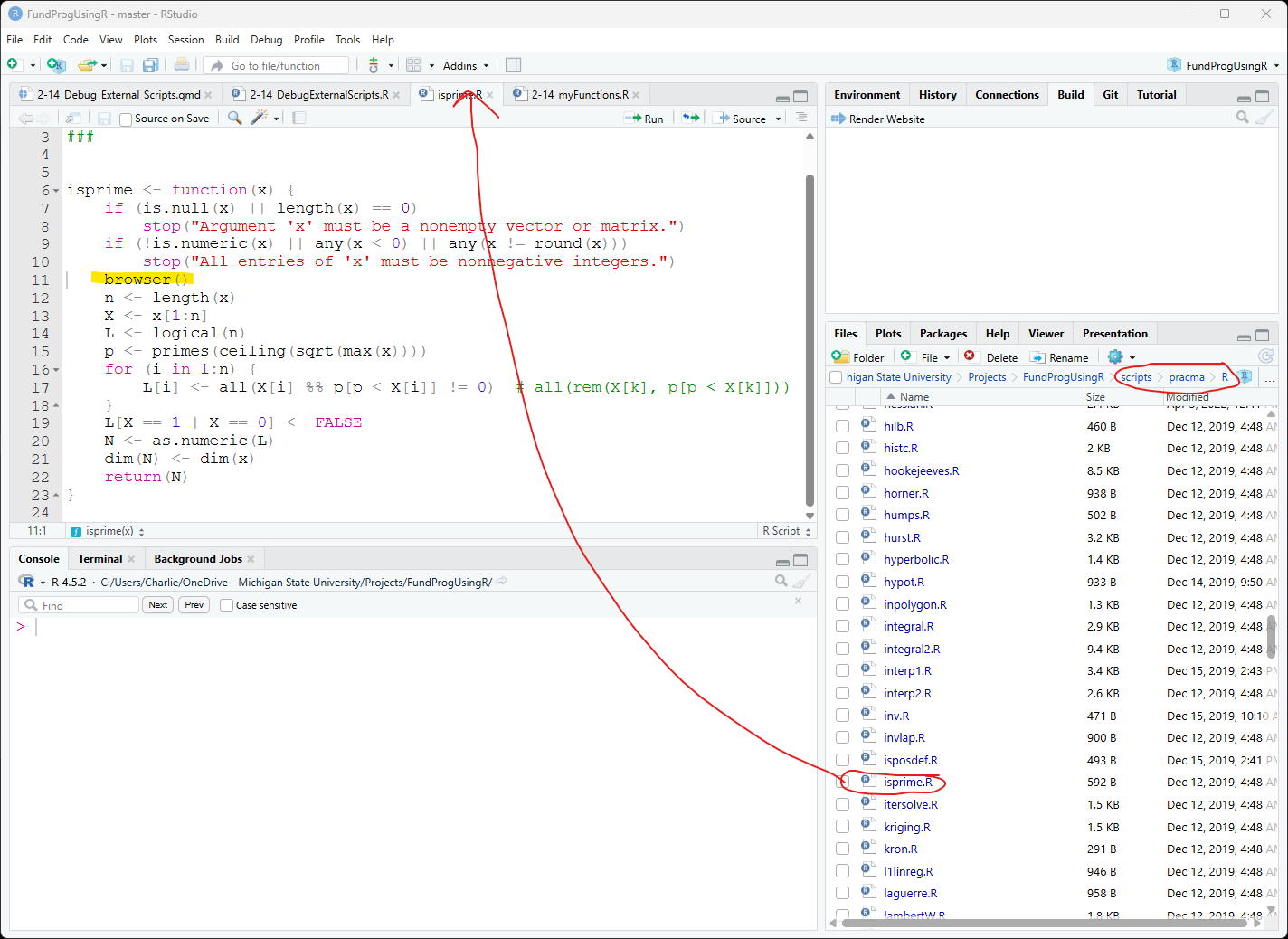
All the script files are inside the R folder in the local pracma folder.
You can now open the local pracma script file in RStudio and edit them – in this case I added browser() to line 11 of the isprime() function in the isprime.R script:
7.1 Debugging
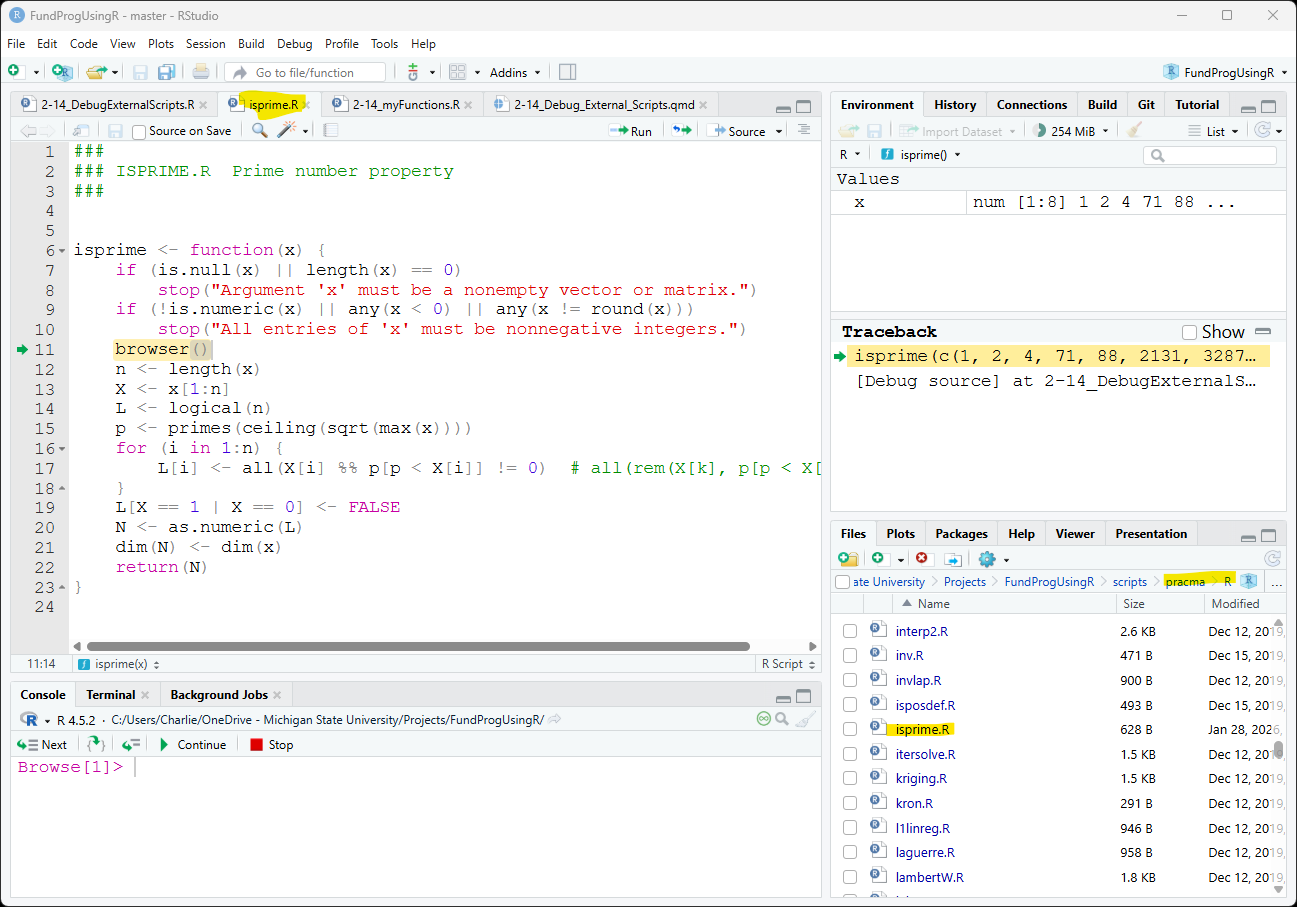
Now you can call isprime() from your main script and browser() will put the function in debug mode:
isprime(c(1,2,4,71,88,2131, 3287, 7819));Debug mode will work exactly as is did before for your own external scripts.
8 Application
9 Extension: Namespaces and Environments
… how packages are loaded into R
10 Extension: Scope
…Why breakpoints work in main script and browser() in external script… but not vice-versa. Similar to the reason if-else structures are a little strange in R…
11 Extension: Next in advanced class
trace() to inject code
functional programming
object-oriented programming (S3 vs S7 objects)
Rcpp